

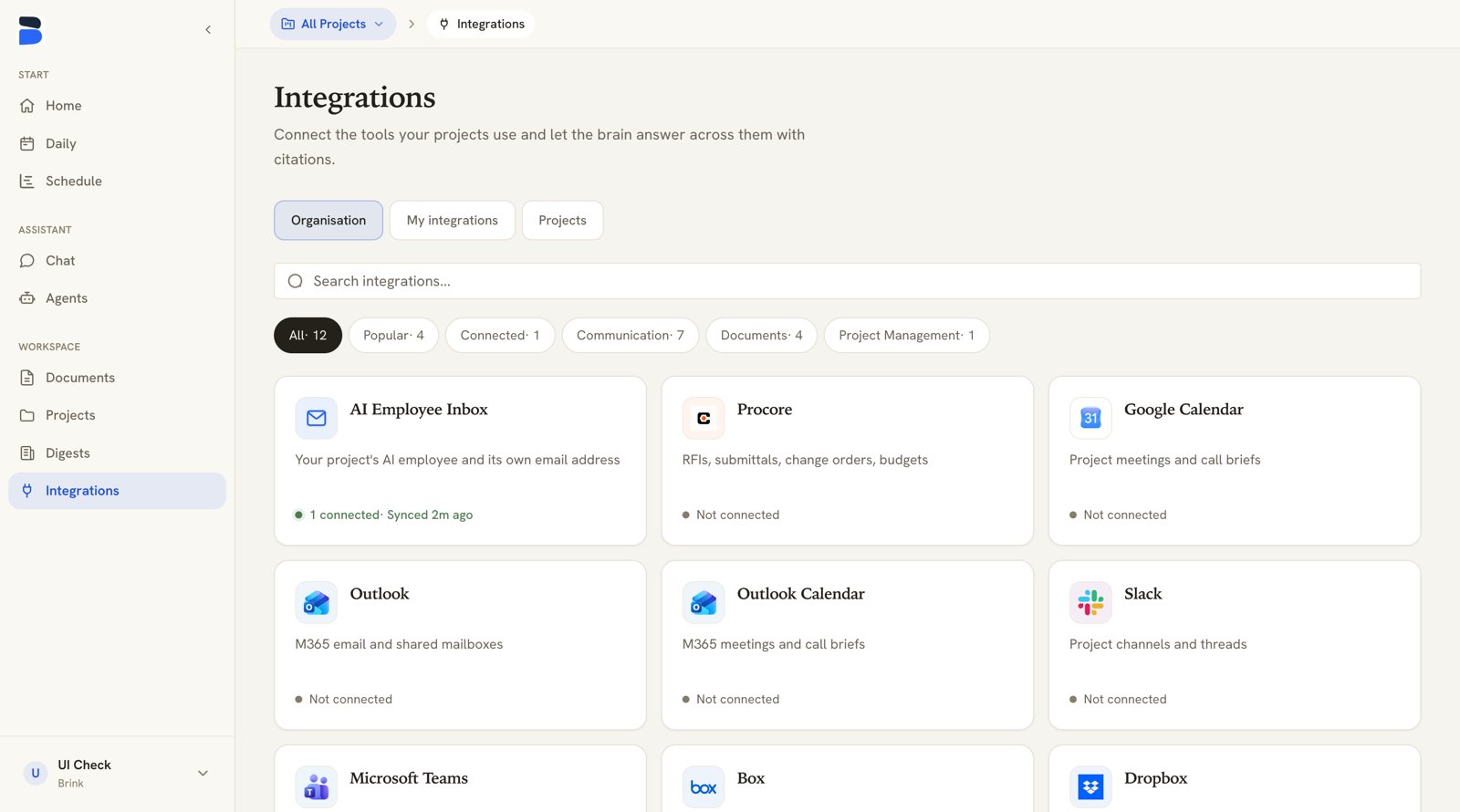
The Integrations page: the Organisation catalog, with filter tabs and per-integration status
How integrations work
There are three concepts to understand, and they build on each other:1
Connect an account
An integration is a type of source (Procore, Slack, Box, …). Connecting
creates an account — an authorized link between Brink and that tool,
established through the provider’s own sign-in and consent screen. Brink
never sees your password.
2
Bind resources to projects
A scope binding maps one external resource — a Procore project, a Slack
channel, a Drive folder, a mail label — to one Brink project. A connected
integration with no binding delivers nothing, so this step is not
optional.
3
Sync
Once bound, Brink imports the existing history and then keeps the source in
sync automatically. You can also trigger a sync manually at any time with
Sync now.
Organization vs. personal connections
Every integration connects in one of two modes:- Organization connections are set up by an owner or admin from the Integrations page. The data is shared with the projects it’s bound to.
- Personal connections are set up by any member from Profile → My integrations. Data from a personal connection is only visible to you — it powers your own assistant and is never shared with your team.
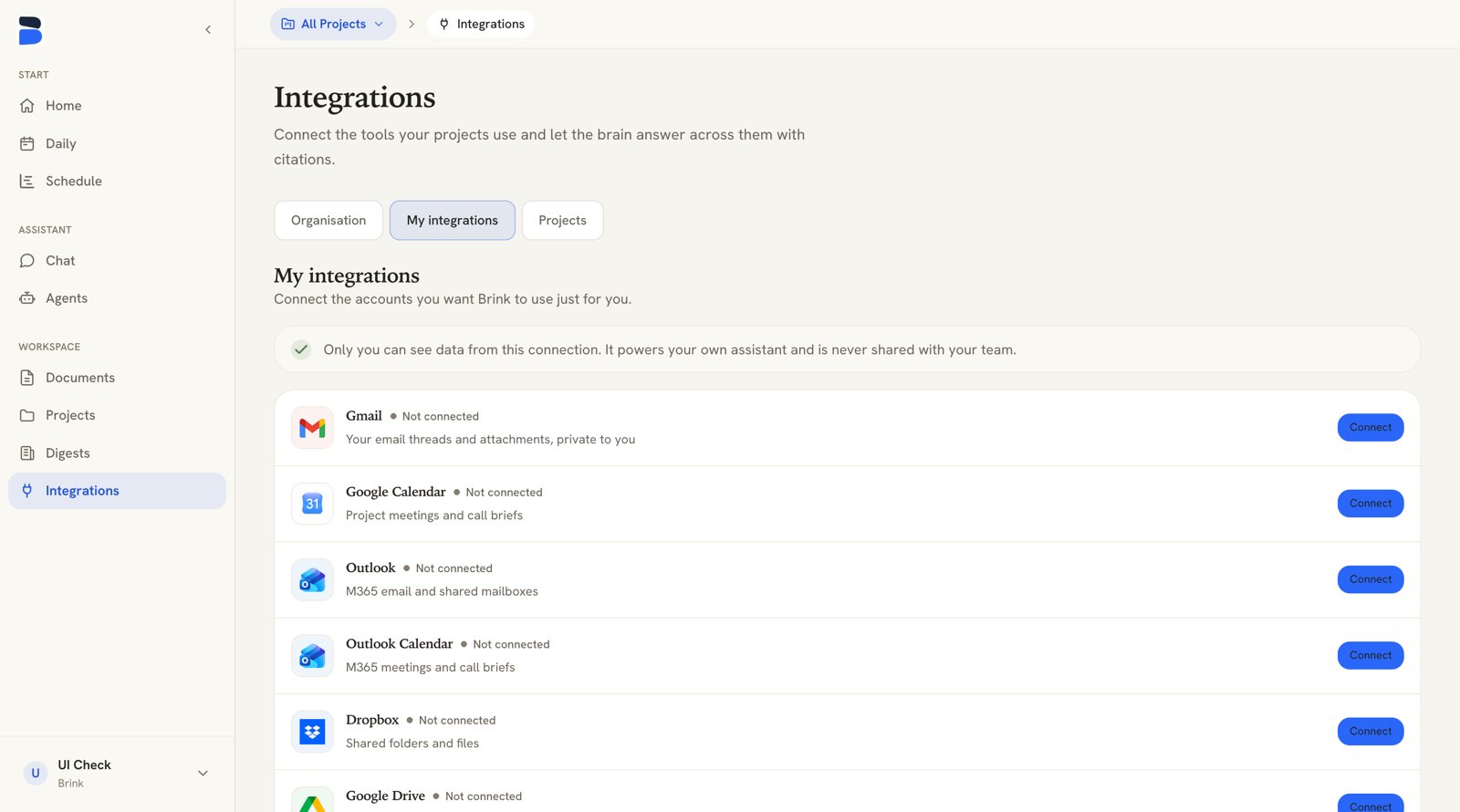
My integrations on the Integrations page — personal connections, private to you
Available integrations
The catalog you see is specific to your workspace: Brink can enable, park, or hide individual integrations per organization, so the list above may not match yours exactly. If you need one that isn’t showing, contact Brink.
Availability states
- Available — the card is live and can be connected.
- Coming soon — the card is visible with a Coming soon badge but can’t be opened or connected. It sorts to the end of the catalog. If your organization already has an account connected on a connector that later gets parked, the card stays fully usable: you keep sync, details and disconnect, and only new authorizations are withheld.
- Not listed — an integration Brink has turned off for your workspace simply doesn’t appear.
The Integrations page
Open Integrations from the sidebar. The page has up to three views, shown as tabs across the top:- Organisation (owners and admins only) — the catalog grid: connect organization accounts, see sync status, and manage each connection from its drawer.
- My integrations — your personal accounts, the same list as Profile → My integrations. This is the default view for members.
- Projects (named after whatever your organization calls projects) — every binding, grouped by project. Admins can unbind and add bindings here; members get the same list read-only.
Filtering the catalog
On the Organisation view, a search box (Search integrations…) matches on name and description, and a row of filter tabs narrows the grid — All, Popular, Connected, plus one tab per category (Project Management, Communication, Documents). Each tab carries a count. Cards are always ordered the same way, on every surface that lists integrations — the catalog, your profile, and onboarding: connected first, then available, then Coming soon. So whatever you’ve already set up stays at the top. Each card shows the provider’s logo, a one-line description and a status line: Not connected, 2 accounts connected, or a freshness reading such as 1 connected· Synced 5m ago. Cards you haven’t connected show a Connect → hint.The connection drawer
Clicking a card opens a drawer on the right with everything for that integration:- Accounts — one card per connected account, with its status, last sync time, and the buttons Sync now, Details, Disconnect. Procore accounts also get Import projects; folder connectors get Bind folders. Below the list, Add another account starts a second authorization.
- Connection method — which OAuth app the connection runs on. See below.
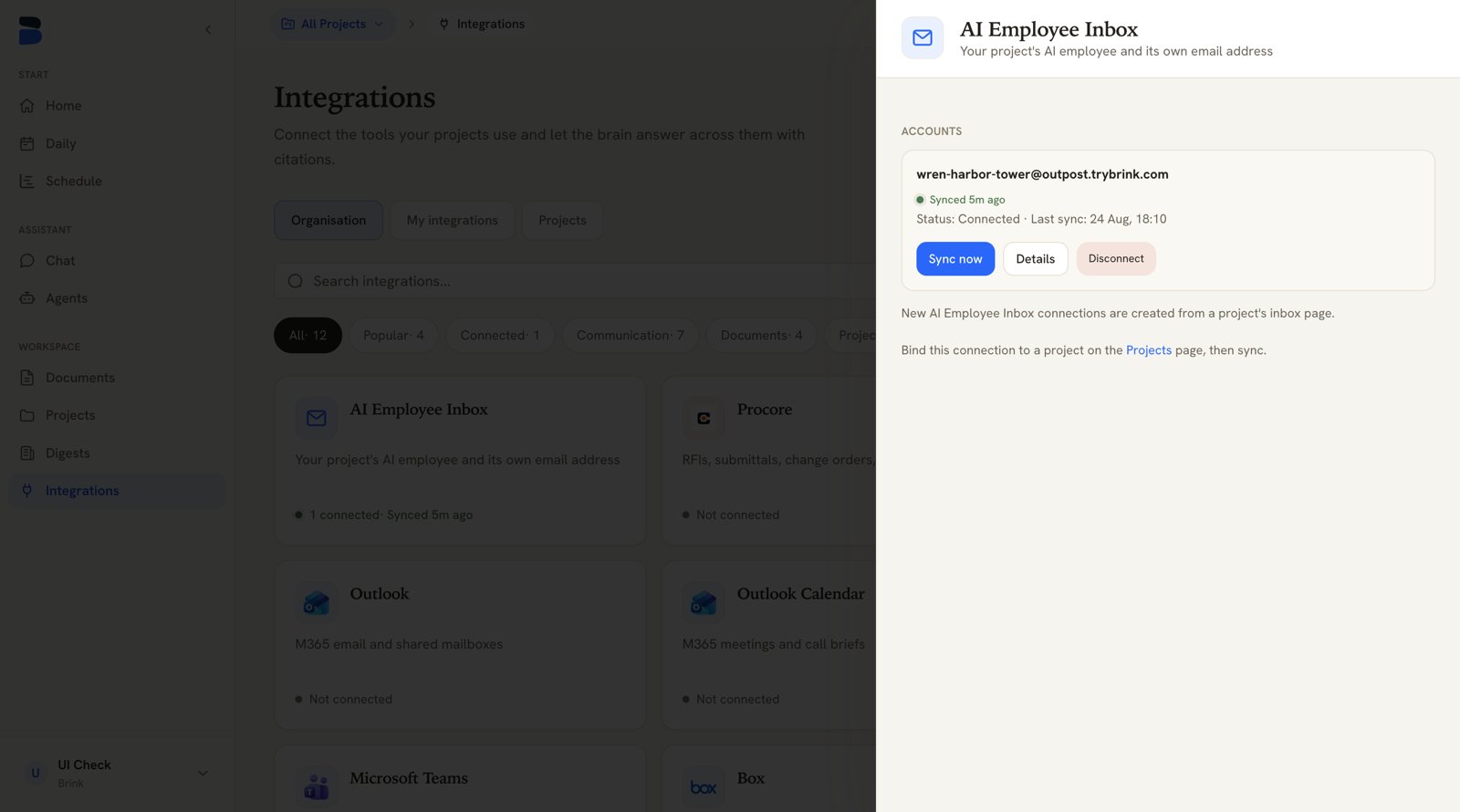
The connection drawer — accounts, their sync status, and the per-account actions
Using your own app
By default, connections run through Brink’s app with the provider. Some connectors let an organization point the connection at its own app instead — Brink then uses your credentials to authorize, to keep the connection alive, and (where the provider supports it) to revoke access when you disconnect. This is offered for: You’ll find it in the drawer under Connection method, which shows either Brink’s app (badge: Default) or Your own … app — named for the connector — (badge: In use). Expanding it reveals the Redirect URI to register with the provider, the credential fields to fill in, Save credentials, and — once you’re on your own app — Use Brink’s app instead.Bringing your own app is per-organization and admin-only, and each connector
has its own credentials: pointing Teams at your Azure app does not
re-point Outlook or Outlook Calendar, and a Google Drive app does not re-point
Gmail or Google Calendar. Existing connections keep working — the credentials
take effect on the next connect.
Where to find things
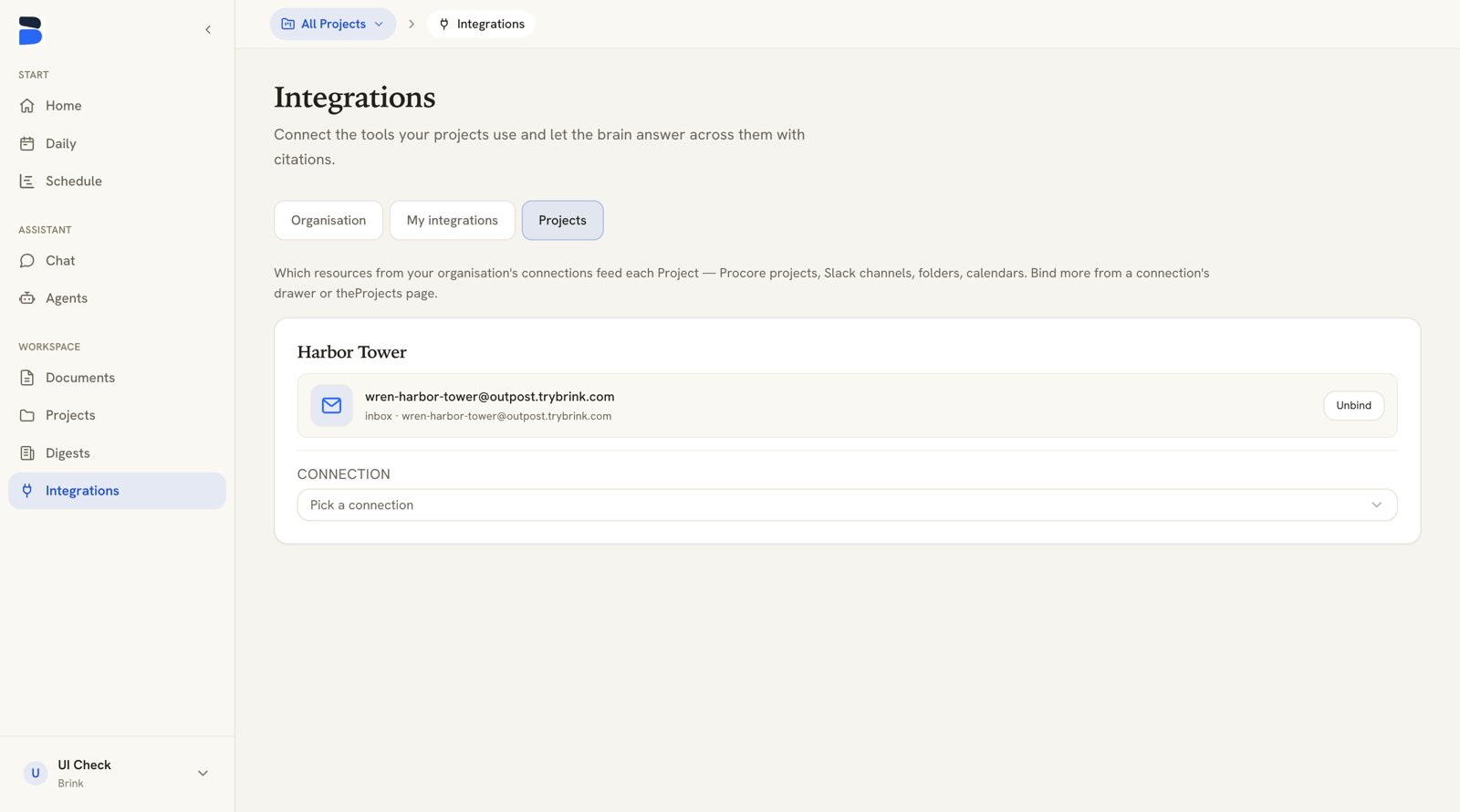
The Projects view on the Integrations page — every binding per project, and a picker to add more
- Integrations page (Integrations in the sidebar) — the catalog, connection drawers, and the Projects binding view.
- Profile → My integrations — connect and manage your personal accounts.
- Projects page — each project card has an Integrations tab where you bind resources and trigger per-binding syncs.
- Onboarding — the setup wizard’s Connect your tools step offers the organization-level integrations when you first create your org.
Who sees what
Brink decides visibility for every piece of synced data, in strict order:- Private — anything from a personally connected account is visible only to that person. No setting can widen it.
- Project-scoped — data bound to a project is visible to that project’s members.
- Organization-wide — shared, non-mail sources with no project binding.
If a provider hasn’t been fully set up for your workspace yet, clicking
Connect creates a demo connection seeded with sample data (you’ll see
account names like
demo-* and resources like “Demo Tower”). Contact Brink to
enable the real connection.